 Tern
Getting started with Tern
Install the plugin, make a backup, restore it, and move a WordPress site to a new domain or host. Then set up schedules, storage, encryption and the rescue page.
On this page
Install Tern
Tern needs WordPress 6.2 or later and PHP 7.4 or later. On multisite, network-activate it.
- Once Tern is on WordPress.org (its review is pending), go to Plugins > Add New in wp-admin, search for Tern, then install and activate it.
- A Tern menu appears with Export, Import, Backups, Schedules, Storage, Reset Hub and Settings.
- Go to Tern > Settings and make a recovery key and a rescue key now, while the site works. Keep both somewhere outside the site, such as a password manager.
Every Tern screen and API route needs a user who can manage options (manage_network_options on multisite).
On Nginx
Nginx ignores .htaccess, so the backups folder needs one rule in your server block. Or set TERN_STORAGE_DIR in wp-config.php to a folder outside the web root.
location ~* ^/wp-content/tern-[a-f0-9]{20}/ { deny all; }Make your first backup
Open Tern > Backups and press Create backup. That makes a full backup with the default options: database, media library, plugins and themes.
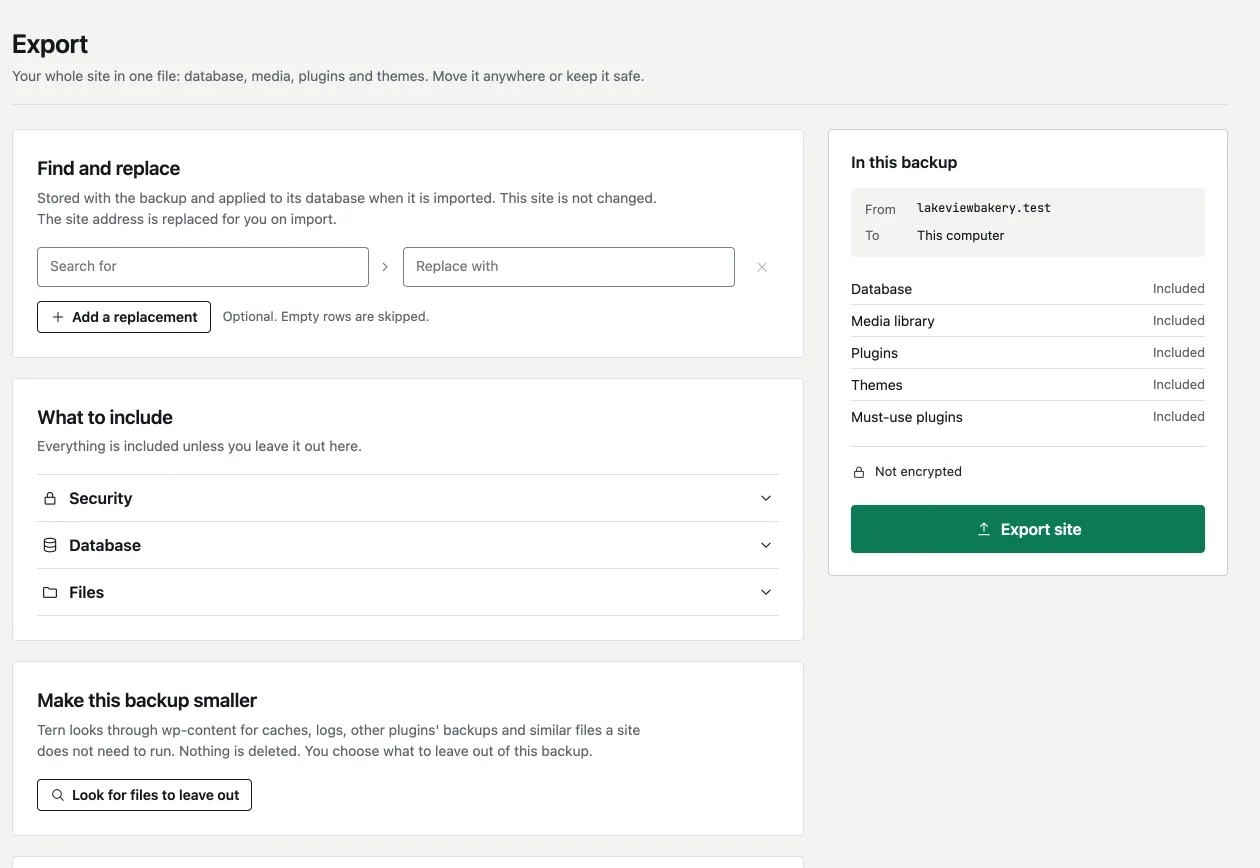
For more control, use Tern > Export. You can:
- leave out the media library, plugins, themes or must-use plugins, or include only active plugins and themes;
- leave out spam comments, post revisions, cache folders, chosen tables or chosen paths;
- add find-and-replace rules that are stored with the backup and run on its database when it is imported;
- encrypt the backup with a password (at least 8 characters);
- download it to this computer (a copy stays on the Backups screen) or send it to a connected storage destination.
The finished file is named after the site and the time, for example example-com-20261126-093012-4f1c2a.tern, and shows up on the Backups screen. About a minute later Tern starts its test restore.
Restore a backup
On Tern > Backups, press Restore on the row you want.
- Tern reads the backup and shows where it came from, when it was made, how many tables and files it holds, and whether its signature matches. It also checks there is enough free disk space.
- If the backup is encrypted, type its password, or your recovery key.
- Leave Take a safety snapshot first on if you want a way back. It copies the database only, not plugins, themes or uploads.
- Confirm. Nothing changes before this step.
New tables are built under a temporary prefix and swapped in only when they are complete. If a step fails, Tern puts the old tables and folders back and turns maintenance mode off. When the restore finishes, Tern loads the home page and up to five recent posts and pages and reports what it finds.
Move a site to a new domain or host
A migration is an export on the old site and an import on the new one.
- On the old site, make a backup from Tern > Backups or Tern > Export.
- Set up WordPress on the new host or domain and install Tern there.
- On the new site, open Tern > Import and bring in the file. Upload it from this computer, give a URL, put it in Tern's import folder over FTP or SSH and pick it from From the server, or pick it From cloud storage.
- Check the summary and confirm.
Tern replaces the old address and server paths in the database, including inside serialized data and addresses escaped twice (as in Elementor's element cache). It does this without calling unserialize(). You can add your own find-and-replace rules too.
Uploads go in 5 MB chunks by default (change it in Settings) and resume after a dropped connection, so PHP's upload limit does not matter. URL imports use WordPress's safe HTTP API, which refuses private and local addresses.
Schedules and retention
Tern > Schedules makes backups on their own. For each schedule you pick:
- How often: every hour, every 6 hours, twice a day, daily, weekly or monthly (day 1 to 28, so every month has it).
- What goes in: the same choices as Export, including leaving out spam, revisions and cache folders.
- Where it goes: this server and any connected storage destinations.
- How many to keep: the last N backups, the last N days, or a size cap. Older backups from that schedule are deleted once any limit is reached. 0 means no limit.
- Email: when a backup fails, when it succeeds, or both.
- Encryption: a saved password for that schedule's backups.
WP-Cron and quiet sites
Schedules run on WP-Cron, which fires when someone visits the site. On a quiet site a run can start late. If DISABLE_WP_CRON is set, the Schedules screen shows a crontab line to add. With WP-CLI:
wp tern schedules run --due --quietStorage destinations
Tern > Storage connects places to send backups. Once connected, a destination shows up on Export and Schedules, and as a source on Import. Tern can list, download and delete its own backups there, for restores and for retention.
| Type | Destinations |
|---|---|
| S3 and object storage | Amazon S3, Amazon S3 Glacier, any S3-compatible storage, DigitalOcean Spaces, Backblaze B2, Google Cloud Storage, Wasabi, Cloudflare R2, Microsoft Azure Blob Storage |
| Cloud drives | Google Drive, Dropbox, Microsoft OneDrive, Box, pCloud |
| Your own servers | FTP and FTPS, SFTP, WebDAV |
Connecting a cloud drive
Google Drive, Dropbox, OneDrive, Box and pCloud connect through an app you create in that service. Paste its client ID and secret into Tern, add the redirect URL Tern shows to your app's allowed redirects, then sign in. Your files go from your server to your account with nobody in between.
Saved credentials are encrypted before they are stored and never shown again in full. SFTP needs the PHP ssh2 extension and FTP needs PHP's FTP functions; Tern tells you if the server lacks them.
Encryption and the recovery key
Turn on encryption in Export or in a schedule and set a password of at least 8 characters. Tern encrypts with XChaCha20-Poly1305 and turns your password into a key with Argon2id (PBKDF2 where the server lacks Argon2id). Encryption needs PHP's libsodium.
Recovery key
Tern > Settings > Recovery key makes a spare key. It opens every encrypted backup made after you create it. Tern shows it once, offers to save it as a text file or copy it, and keeps only a lock that matches it. To use it, type the recovery key where Tern asks for the backup password.
Signed backups
Each .tern file carries an Ed25519 signature made with a key only your site holds. Tern refuses to restore a signed file that was changed after it was made, and the confirm step tells you whether the signature matches.
Test restores (restore drills)
About a minute after a .tern backup is made, Tern tests it in the background:
- checks the signature;
- reads back every stored file;
- loads the database into temporary tables and checks that the tables, the site address settings and an administrator account are there;
- drops the temporary tables.
The Backups screen shows Test restore passed, Partly tested or Test restore failed under the file name, with the reason. A test waits when another job is busy and stops when you start an export, import or restore.
- Run a test by hand from a backup's menu. For an encrypted backup, type its password there so the database can be loaded. Without it, only the signature is checked.
- Databases larger than 2 GB are not loaded. The file and signature checks still run. Developers can change the limit with the
tern_drill_max_db_mbfilter. - Switch automatic tests off in Settings > Test restores.
Snapshots before risky changes
Off by default. Turn on Take a backup first in Settings and Tern makes a small backup right before the changes that most often break a site:
- Plugin and theme updates: the database plus that plugin or theme.
- Theme and plugin file editor saves: that folder.
- WooCommerce settings saves: the settings plus the WooCommerce tax and shipping tables.
The same target is not snapshotted again within 10 minutes. You set the largest snapshot size (bigger ones are skipped so an update never waits long) and how many snapshots to keep. Your other backups are never touched.
Rescue page
For the day a plugin or theme breaks the site and wp-admin will not load. Set it up while the site works:
- Tern > Settings > Rescue page: make a rescue key. Tern shows it once. Keep it outside the site.
- Save the rescue file. It is the same file every time, so one copy is enough. Tern never writes it to your site for you.
When the site breaks:
- Upload the rescue file (named
tern-rescue-….php) to the folder that holdswp-config.php. - Open it in your browser. It loads WordPress with every other plugin switched off and no theme. Must-use plugins still load.
- Enter the rescue key and pick the backup to restore.
The file does nothing without the key. A finished restore uses the key up and deletes the file where the server allows it. Five wrong keys lock an address out for 15 minutes, and 100 wrong keys in an hour lock the page for everyone. The site stores only a hash of the key.
No rescue key? If you have SSH, wp tern backups restore <name> restores without a browser.
Reset Hub
Tern > Reset Hub clears parts of a live site for a fresh start. Each tool says what it removes and asks you to type the site address first.
| Tool | What it removes |
|---|---|
| Plugins | Every plugin folder except Tern. Plugin settings in the database stay. |
| Themes | Every theme except the active one, its parent and one default WordPress theme kept as a fallback. |
| Media | Every file in the uploads folder, and the media library entries that pointed to them. |
| Database | All posts, pages, comments, users and settings. WordPress starts fresh with your account, so you stay logged in. |
| All | All of the above in one go. Tern and its backups stay. |
Take a safety snapshot first is on by default. Tern makes a full backup, and the reset runs only if that backup succeeds. Without it, a reset cannot be undone.
WP-CLI basics
Every command runs the whole job in one process, so no browser and no WP-Cron are needed. Large sites are happiest here.
# Back up
wp tern export
wp tern export --no-media --exclude=wp-content/cache
wp tern export --password --destination=s3

# Import or move a site (asks before replacing anything)
wp tern import ~/site.tern
wp tern import https://example.com/site.tern --password

# List, restore and delete backups
wp tern backups list
wp tern backups restore 2026-11-01-site.tern --yes
wp tern backups delete old-site.tern --yes

# Check a file without restoring it
wp tern verify site.tern

# Schedules
wp tern schedules list
wp tern schedules run --due --quiet

# Reset Hub (takes a full backup first unless --no-snapshot)
wp tern reset plugins --yes
Useful flags: --password without a value asks for it hidden; --keep-user keeps the account given with --user through an import or restore; --sha256=<checksum> stops a URL import when the download does not match; plain http URLs need --allow-insecure. Run wp help tern for the full list.
Tern also has a REST API under tern/v1. Every route needs a user who can manage options, and it accepts Application Passwords.
Optional AI help
Off by default. Tern's AI features use the AI connector you set up in WordPress itself (Connectors, in WordPress 7.0 and later). Tern does not ask for an AI key of its own and does not talk to an AI service directly.
With AI on, you get plain-language summaries of job logs and advice when a restore fails. Before anything is sent, Tern removes email addresses, IP addresses, URL query strings, passwords, keys, tokens, salts and database names and users, and replaces server paths with placeholders.
With AI off, Tern's built-in checks still recognise common failures, such as PHP running out of memory, a request hitting the time limit, a full disk or a dropped database connection, and list the steps to fix them.
What uninstalling removes
Deleting Tern from the Plugins screen removes its settings, keys, schedules, jobs, temporary files, logs and scheduled events. Backup files and the import folder stay, unless you turned on Delete all backups when the plugin is deleted in Settings.
Getting help
Once Tern is listed on WordPress.org, ask on its support forum there. Include what you were doing and the job log from Tern > Settings > Logs. Tern never writes passwords or keys to its logs.