 Tern
WordPress backups that are tested before you need them.
Tern is a free plugin that backs up, moves and restores a WordPress site. After each new backup it does a test restore on your own server, so the Backups screen can tell you the file will actually come back.
Free under GPLv3. No account to create. No tracking.

A backup nobody has restored is a guess.
Most backup plugins tell you a file was made. Tern also tells you whether it will restore. Every new backup gets a drill in the background, and your live site is not touched.
Signature checked
Each .tern file is signed with a key only your site holds. A file changed after it was made fails here.
Every file read back
Tern opens the backup and reads each stored file, so a cut-off or damaged archive shows up today instead of on restore day.
Database loaded aside
The database goes into tables with a temporary name. Tern looks for the tables, the site address settings and an administrator account.
Cleaned up, result shown
The temporary tables are dropped. The Backups screen says Test restore passed, Partly tested or Test restore failed, and why.
Encrypted backups get the signature check unless you test them by hand and type the password. Databases over 2 GB skip the load step. You can test any backup again from its menu, or switch automatic tests off in Settings.
One file holds the whole site.
A .tern backup carries the database, uploads, themes and plugins. Keep it on the server, download it, or send it to cloud storage.
Back up
One click on the Backups screen makes a full backup. Tern > Export lets you leave out spam comments, revisions, media, inactive plugins and themes, cache folders, or tables and paths you pick. Long jobs run in short steps, so they finish on hosts with a 30 second PHP time limit, and they keep going after you close the tab.
example-com-20261126-093012-4f1c2a.tern
Move to a new domain or host
Install Tern on the new WordPress site and import the file. Tern replaces the old address and server paths in the database, including inside serialized data, without calling unserialize(). Uploads go in small chunks that resume after a dropped connection, so PHP's upload limit stops mattering.

Restore
Press Restore on any row of the Backups screen. Tern reads the backup first and shows where it came from, when it was made, what it holds and whether its signature matches. It checks free disk space. Nothing changes until you confirm.
New tables are built under a temporary prefix and swapped in only when they are complete. If a step fails, the old tables and folders go back and maintenance mode turns off.
After a restore: home page plus up to 5 recent posts and pages checked
For the day wp-admin will not load.
A bad plugin update can lock you out of the dashboard you would use to fix it. Tern plans for that day before it comes.
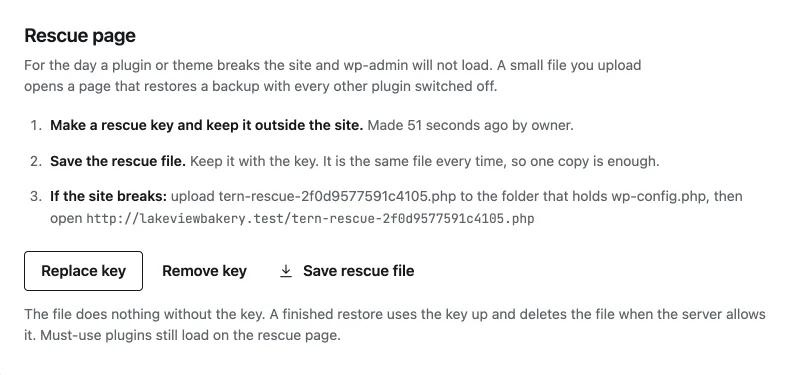
Rescue page
Make a rescue key in Settings and save the rescue file ahead of time. When the site breaks, upload that one file next to wp-config.php and open it. It loads WordPress with every other plugin switched off and no theme, asks for the key, and restores the backup you pick.
Snapshots before risky changes
Optional. Before a plugin or theme update, Tern backs up the database and that plugin or theme. Before a save in the theme or plugin file editor, it copies that folder. Before a WooCommerce settings save, it copies the settings and the tax and shipping tables.
Reset Hub
Remove every other plugin, remove inactive themes, empty the media library, or reset the database to a fresh install. Each tool makes you type the site address, and takes a full backup first unless you untick it.
Lock backups with a password. Keep a spare key.
Encryption is optional. Turn it on and a backup opens only with its password or your recovery key. Make the recovery key early: it opens backups made after it exists, not before.
- Cipher
- XChaCha20-Poly1305
- Password to key
- Argon2id, or PBKDF2 where the server lacks Argon2id
- Signatures
- Ed25519, with a key made on your site
- Recovery key
- Shown once. The site keeps only a lock that matches it.
- Storage logins
- Encrypted with libsodium before they are saved
- Download links
- Signed, tied to your account, expire after 10 minutes
17 places to keep a copy off the server.
A backup that lives only on the server it protects goes down with that server. Connect one or more of these and pick them for any backup or schedule.
- Amazon S3
- Amazon S3 Glacier
- Any S3-compatible storage
- DigitalOcean Spaces
- Backblaze B2
- Google Cloud Storage
- Wasabi
- Cloudflare R2
- Microsoft Azure Blob Storage
- Google Drive
- Dropbox
- Microsoft OneDrive
- Box
- pCloud
- FTP and FTPS
- SFTP
- WebDAV
- And this server, where every backup starts
Google Drive, Dropbox, OneDrive, Box and pCloud connect through an app you create in that service, with your own client ID and secret, so backups travel from your server to your account and nowhere else.
AI is optional, and it goes through WordPress.
Off by default. Switch it on and Tern uses the AI connector you set up in WordPress itself (Connectors, WordPress 7.0 and later) for plain-language log summaries and restore advice. Tern holds no AI key of its own.
Email addresses, IP addresses, passwords, keys and server paths are stripped before anything is sent. With AI off, built-in checks still name common failures, such as PHP running out of memory or a full disk, and list the fix.
Questions people ask before they trust a backup plugin.
Is Tern free?
Yes. Tern is free software under GPLv3, and you can install it on as many sites as you like. Backups, restores, migrations, schedules, all 17 storage destinations, encryption, test restores and the rescue page are all in the free plugin. There is no account to create. Tern Pro is a separate paid add-on that is planned and not available yet. See what it will add.
What makes Tern different from other WordPress backup plugins?
Tern test-restores every new backup on your own server, so the Backups screen says whether the file will actually come back, not only that it was made. Everything else people often pay for is in the free plugin: migration to a new domain or host, scheduled backups, 17 storage destinations, encryption with a recovery key, signed backups and a rescue page for when wp-admin will not load. See Tern next to UpdraftPlus, All-in-One WP Migration and Duplicator.
Can Tern back up WordPress to Google Drive, Dropbox or Amazon S3 for free?
Yes. All 17 storage destinations are in the free plugin: Amazon S3, Amazon S3 Glacier, any S3-compatible storage, DigitalOcean Spaces, Backblaze B2, Google Cloud Storage, Wasabi, Cloudflare R2, Microsoft Azure Blob Storage, Google Drive, Dropbox, Microsoft OneDrive, Box, pCloud, FTP and FTPS, SFTP and WebDAV.
Can I schedule automatic WordPress backups with Tern?
Yes. A schedule can run hourly, every 6 hours, twice a day, daily, weekly or monthly. It keeps the last N backups or N days, or stays under a size cap, and emails you when a run fails.
Can I run Tern from WP-CLI or the REST API?
Yes. WP-CLI runs every job in one process, with no browser and no WP-Cron: wp tern export, wp tern import and wp tern verify. A REST API under tern/v1 works with Application Passwords.
How does Tern know a backup will restore?
It runs a test restore. About a minute after a backup finishes, Tern checks the file's signature, reads back every stored file, and loads the database into tables with a temporary name on your own server. It checks that the tables, the site address settings and an administrator account are there, then drops those tables. The result shows next to the backup: Test restore passed, Partly tested or Test restore failed, with the reason.
Does the test restore slow down my site?
It runs in the background and steps aside as soon as you start an export, import or restore of your own. Databases larger than 2 GB are not loaded, though the file and signature checks still run. You can switch automatic tests off in Settings.
How do I move a WordPress site to a new domain or host?
Export the old site to a .tern file. Install Tern on the new WordPress site and import that file. Tern replaces the old address and server paths in the database, including inside serialized data, then loads the home page and up to five recent posts and pages and reports what it finds. Step by step in the docs.
Is there a file size limit?
Tern sets none. Uploads go in 5 MB chunks by default, so PHP's upload limit does not apply, and long jobs run in short steps that fit a 30 second PHP time limit. Your disk space and your host's own limits are the real ceiling.
What happens if an import fails halfway?
Your live tables are swapped only after the new ones are fully built. If a later step fails, Tern puts the old tables and folders back and turns maintenance mode off.
My site is broken and wp-admin will not load. What now?
If you made a rescue key and saved the rescue file beforehand, upload that file to the folder that holds wp-config.php, open it in your browser, enter the key and restore a backup. If you have SSH, wp tern backups restore <name> works too.
I lost my backup password. Can Tern open the backup?
Only if you made a recovery key before that backup was created. Type the recovery key where Tern asks for the password. Without it, nobody can open an encrypted backup, Tern included.
Does Tern send my site data anywhere?
Only to places you connect. Tern has no tracking and does not contact any server of its own. Backups go to the storage destinations you set up, and AI requests (off by default) go through the AI connector you set up in WordPress. Read the privacy page.
Where do I get help?
Once Tern is listed on WordPress.org, ask on its support forum there. Include what you were doing and the job log from Tern > Settings > Logs. Logs never contain passwords or keys.
Make a backup today. Know by tomorrow that it restores.
Tern is waiting for its WordPress.org review. Once it is approved, it will be a free download there.